
You are about to beat your high score, and suddenly the game freezes. Few things are more frustrating than lag in the middle of a great run. The good news is that most browser game lag can be fixed with a few simple steps, and you do not need to be a tech expert.
In this guide, we explain why browser games lag and share 12 easy tips for smoother gameplay.
Why Do Browser Games Lag?
Lag usually comes from one or more of these causes:
- Slow or unstable internet connection
- Too many open tabs and background apps
- Low RAM or an overloaded processor
- Outdated browser or graphics settings
- Heavy browser extensions
- A large game that is not well optimized
- Overheating devices that reduce performance
12 Tips to Fix Browser Game Lag
1. Close Unused Tabs
Every tab uses memory and processing power. Close everything except the game tab for the smoothest play.
2. Restart Your Browser or Device
A quick restart clears temporary glitches and frees up memory that may have built up over time.
3. Update Your Browser
New browser versions include performance improvements and bug fixes. Check for updates in your browser settings.
4. Turn On Hardware Acceleration
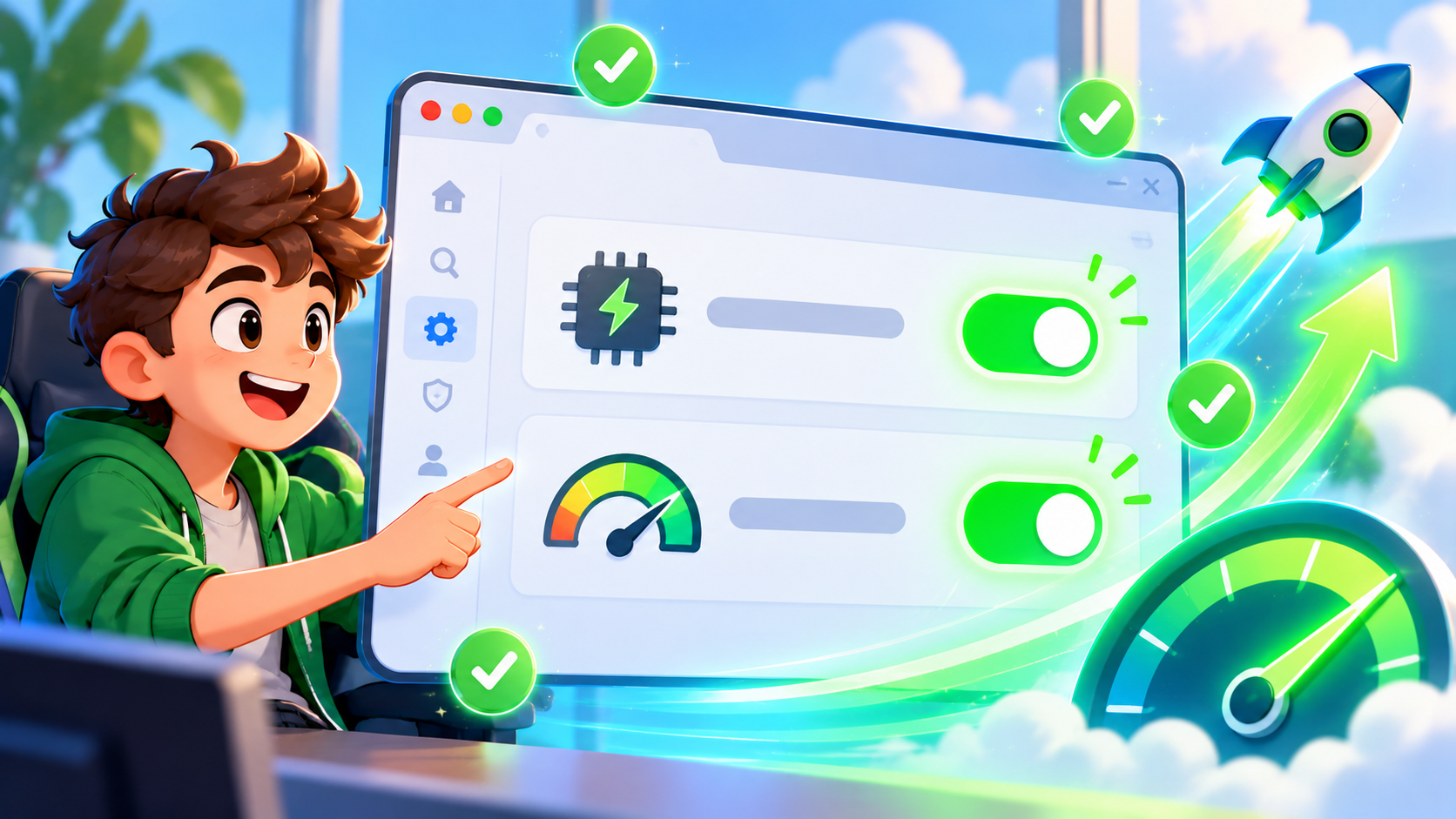
Hardware acceleration lets your browser use your graphics processor to draw game visuals. In most browsers, you can find it under Settings, then System.
5. Disable Heavy Extensions
Ad blockers, video downloaders, and other extensions can slow games down. Try playing in an incognito or private window, where most extensions are disabled.
6. Check Your Internet Connection
For online or multiplayer games, a weak connection is a common cause of lag. Move closer to your router, switch to a wired connection if possible, or restart your router.
7. Pause Downloads and Streaming
Large downloads, video calls, and streaming videos compete for the same bandwidth your game needs.
8. Lower the Game Quality
If the game offers a graphics or quality setting, reduce it. Smaller effects and lower resolution can double your smoothness.
9. Clear Cache and Cookies
Old stored data can sometimes cause loading problems. Clearing the cache gives the game a fresh start.
10. Keep Your Device Cool
Overheating makes processors slow down on purpose. Use your laptop on a hard, flat surface, keep vents clear, and take short breaks during long sessions.
11. Switch to Full Screen or a Different Browser
Sometimes a game simply runs better in another browser. If your game lags in one, test it in Chrome, Edge, or Firefox.
12. Choose Lighter Games
If your device is older, pick 2D or low-detail games. Not every game is built for every machine, and that is okay.
Quick Troubleshooting Checklist
- Close extra tabs.
- Refresh the page.
- Restart the browser.
- Check your internet speed.
- Disable extensions or use private mode.
- Lower graphics quality.
- Try another browser.
Frequently Asked Questions
Why does my game lag only on mobile?
Phones have limited memory and may slow down when hot or low on battery. Close background apps and enable battery saver off for smoother play.
Does a faster internet plan fix lag?
Only if your connection is the problem. For single-player games, lag is usually caused by your device, not your internet speed.
Is lag the same as low FPS?
They feel similar but are different. Lag usually means a delay in response (often network related), while low FPS means choppy visuals (often device related).
Play Smooth, Win More
A few small changes can make a big difference in how your games feel. Try these tips, then jump back into your favorite game at unique100.com.